Build a Spoken-Content Comparison Sequence
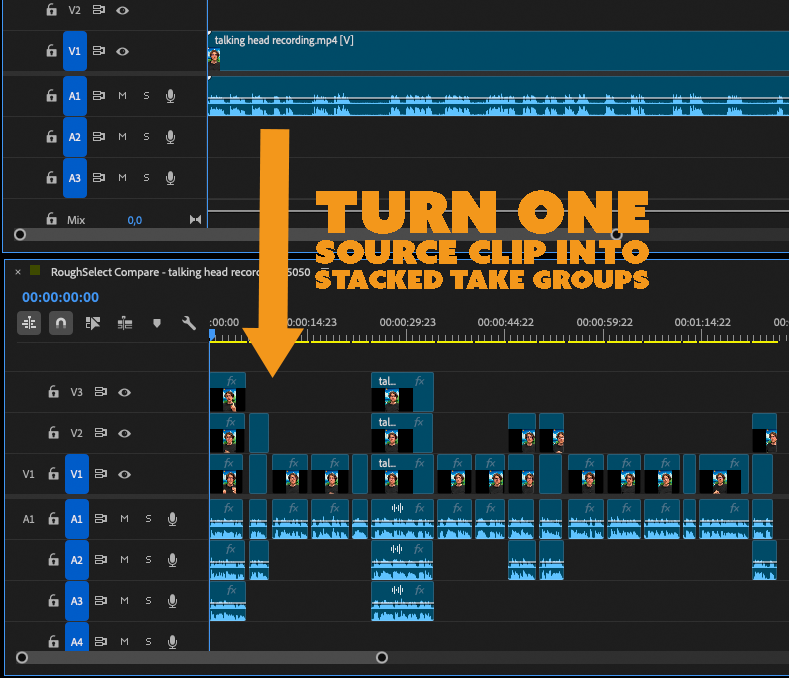
A comparison sequence turns long spoken recordings into a review timeline where alternative deliveries or constructions are stacked vertically. It deliberately keeps several choices visible instead of deciding which take belongs in the final edit.
Automation Agent provides two ready-made Library workflows for this job. Choose between them based on how closely the spoken wording repeats, not simply on whether you have a written script.
Choose The Right Comparison Workflow
| Your material | Use this workflow | Analysis and result |
|---|---|---|
| Scripted or near-scripted repetitions, retakes, and lightly changed wording | Build Repeated-Takes Comparison Sequence | Local transcript matching finds repeated passages and stacks viable takes without ranking performance. An optional reference script improves order and matching. |
| Freely phrased material where different passages express the same idea | Create Semantic Rough-Select Comparison | Workflow AI understands the complete transcript context, proposes a story structure, and stacks semantically related alternatives while retaining unresolved material for review. |
Both workflows create a new, non-destructive Premiere sequence and leave the source media untouched. The local Repeated-Takes workflow usually finishes in seconds without an AI provider. The semantic workflow can take several minutes, uses the configured Workflow AI provider, and may involve network use and token costs.
Install Automation Agent for Adobe Premiere and the Python Runtime Pack, then make sure the selected sources already have usable Premiere transcripts. The semantic variant also requires a configured Workflow AI provider with JSON-Schema structured output.
Variant A: Scripted Or Repeated Wording
Use Build Repeated-Takes Comparison Sequence when a presenter follows a script, records the same paragraph several times, or retries a sentence until they are satisfied. It can analyze one or more recordings and does not require a reference script: without one, it conservatively reconstructs repeated wording from the selected transcripts.
This variant runs locally from Library > Examples > Editing.
- Works offline: transcript analysis and sequence planning stay on your computer.
- No agent setup or token costs: matching is deterministic rather than model-based.
- Seconds instead of minutes: typical short sessions finish in a few seconds, depending on transcript length and hardware.
The Python Runtime Pack must be installed, but no Workflow AI provider, MCP connection, or API key is required.
Run the Library workflow
- Open
Library > Examples > Editingand run Build Repeated-Takes Comparison Sequence. - While the setup dialog is open, select or adjust one or more recording clips from the same session in the Project panel. You can instead select bins; eligible clips in those bins and all subbins are included recursively.
- Confirm that every included clip is online and already has a usable transcript. At least one source must contain video; additional audio-only recordings are accepted. Unsupported descendants such as sequences are ignored.
- Optionally paste the intended script or transcript.
- Adjust the natural before/after handles or the gap between take groups if needed, then click OK.
On this page, natural handles means padding clamped to the available media range. These comparison workflows do not additionally clamp handles at adjacent transcript words, so review every passage edge when nearby speech must stay out. The stricter Spoken-Content Rough Cut does provide that word-boundary guarantee.
Providing the intended text is the preferred mode: matching passages are placed in script order, and repeated takes of the same passage are stacked on separate tracks. One source clip can contribute several separate takes; the workflow does not treat the complete recording as one indivisible match.
If you leave the field empty, the helper conservatively reconstructs repeated wording from the selected source transcripts. This works well for repeated or lightly changed deliveries, but it does not claim to understand semantically equivalent free-form paraphrases.
Unsupported selected items and unsupported descendants, such as sequences, multicam items, and merged clips, are ignored when at least one eligible source remains. If the complete selected scope contains no eligible footage or audio source, the workflow stops before analysis or Sequence creation.
What it creates
The result is a new review sequence where:
- each intended passage occupies one timeline group
- alternate deliveries are aligned around shared spoken words and stacked vertically
- takes are ordered chronologically, with the latest take on the lowest lane
- higher video and audio lanes are muted initially
- small handles preserve natural context around each delivery
- file boundaries remain hard take boundaries, even when recording was stopped and resumed
- sequence markers identify missing reference passages, accepted fuzzy or partial stacks, and excluded plausible ambiguities
- with a supplied reference, owned source markers label each placed take as
EXACT,WORDING, orPARTIAL
The workflow does not call a take “best” or rank performance quality. The latest take is placed lowest because presenters often repeat a passage until satisfied; this remains a review convention rather than a quality judgment.
When all included files contain coherent capture-date metadata, the workflow uses that chronology. Otherwise it keeps Premiere's selection-root order followed by depth-first bin order and reports the fallback. Overlapping selected roots are deduplicated at first occurrence. A file boundary always starts a new take.
Variant B: Free Speech And Semantic Alternatives
Use Create Semantic Rough-Select Comparison from
Library > Examples > Editing when a presenter, interviewee, or podcaster
repeats ideas in substantially different words and understanding the complete
story matters.
This Workflow AI variant gives the configured provider the complete transcript context as stable text-unit IDs. The provider proposes an ordered story structure and identifies local alternative constructions; deterministic code then validates those IDs, resolves timing from Premiere's transcript data, and builds the sequence. The provider never authors timestamps, track indices, or Premiere references.
Run the Library workflow
- Open the workflow and optionally enter an outline or special editing instructions. For example, explain whether deliberate dramatic pauses should be preserved or tightened, or whether obvious false starts should be removed aggressively for a tight social edit.
- Adjust the natural before/after handles or the gap between content blocks if needed.
- While its setup dialog remains open, select one or more online, already-transcribed footage or audio clips in the Project panel, or select bins to include eligible clips from all subbins recursively.
- Click OK and allow Workflow AI to analyze the complete recording session.
- Review every resulting block, alternative, gap, marker, and omission report.
The workflow gives Workflow AI a sparse indication when significant silence occurred between transcript units. Silence is context, not an automatic cut: the agent must still distinguish a restarted take from reflection, hesitation, or an intentional dramatic pause using the wording, complete session, and your optional instructions.
What it creates
This mode intentionally does not select one winning edit:
- required singleton passages form the main path on V1/A1
- mutually exclusive local constructions are stacked on higher tracks
- the next story block begins after the longest local alternative
- track meaning resets for every block, so V2 in one block is unrelated to V2 in the next
- unresolved material can appear in a separate review area
- omitted and reused transcript units are reported rather than prohibited
- uncertainty, conflicts, qualifications, and refined boundaries can produce review markers
Editorial coherence and clean connections take priority when Workflow AI orders local alternatives. When two constructions are otherwise similarly useful, it prefers the one using the later recorded take on the lower track. This is a practical review heuristic, not a claim that the later performance is better. You can override it in the optional editing instructions for projects with a different take-selection convention.
This workflow requires a configured Workflow AI provider with JSON-Schema structured output. Transcript text and optional editorial context are processed according to that provider's configuration and may incur network use, token costs, and several minutes of processing time. Input-size profiles are advisory rather than hard limits: a capable provider may accept larger sessions, while an overloaded provider may fail without changing Premiere.
The result is an editorial proposal, not a verified final story. Original footage remains available, and a human editor must review material the proposal omitted, reused, grouped, or left unresolved.
Review The Stacked Alternatives Efficiently
After either workflow builds the sequence, use Solo V1/A1 Tracks through Solo V5/A5 Tracks from the Library's Quick Timeline Actions to make one matching video/audio lane visible and audible while disabling the others. You can bind these actions to keyboard shortcuts, Touch Portal, Stream Deck, or similar controls through Keyboard Shortcuts and Remote Triggers to switch between alternatives without interrupting timeline review.
Permissions For Both Library Workflows
Both workflows create a new sequence and place ranges from the selected source clips or eligible descendants of selected bins. If you restrict Project write access, allow both the expanded source items and the Premiere Project-panel location where the new sequence will be created. The workflows use Premiere's default location and have no output-bin picker, so allowing a separate output bin alone is not sufficient.
Source access is needed because placement temporarily sets and restores source
In/Out points. Build Repeated-Takes Comparison Sequence can also add its own
AA-RT review markers to source items when you provide a reference script. The
workflows do not change the underlying media files.
Both workflows need permission to run the installed Python Runtime Pack and to
read, write, and clean up their working folders under
::HOME::/automation-agent-repeated-takes or
::HOME::/automation-agent-semantic-rough-select. The deterministic workflow
does not require internet access. Create Semantic Rough-Select Comparison
additionally sends transcript text and optional editing instructions to the
configured Workflow AI provider, subject to that provider's privacy, network,
and token settings.
How These Workflows Differ From Other Spoken-Content Tools
| Your editorial decision | Use this workflow | Result |
|---|---|---|
| Keep every viable scripted or near-scripted delivery for manual comparison. | Build Repeated-Takes Comparison Sequence | Local stacked take groups without AI ranking. |
| Use semantic judgment but keep several possible constructions. | Create Semantic Rough-Select Comparison | A proposed story structure with stacked alternatives and unresolved material. |
| Let Workflow AI commit to one coherent proposed story, optionally near a duration goal. | Create Spoken-Content Rough Cut | One sequential rough cut with review markers and omissions. |
| Let an approved script or paper edit define the target wording and order. | Assemble Sequence From Script | A target-ordered local assembly with lexical alternatives and visible missing passages. |
Choose a comparison workflow when the editor should make the final choice among visible alternatives. Choose Create Spoken-Content Rough Cut when Workflow AI should select one proposed path. Choose Assemble Sequence From Script (Offline) when the desired text already defines the edit.
For a fixed cross-clip chronology, first arrange and trim the material in a sequence and use active-sequence input in Create Spoken-Content Rough Cut. Project-panel selection order is not a reliable global story order: selected clips define chronology only inside each source, while selected bins include eligible descendants from all subbins recursively.
Recommended Workflow Walkthrough
This walkthrough compares the two current Library workflows side by side: local repeated-wording matching for scripted takes, and semantic Workflow AI for differently phrased alternatives. It also shows the Quick Timeline Actions used to review stacked lanes efficiently.
Focused Repeated-Takes Walkthrough (Optional)
The earlier walkthrough below remains a useful close-up of the local Repeated-Takes variant. Watch it when you want a shorter, variant-specific introduction; use the recommended walkthrough above when deciding between both current comparison workflows.
This walkthrough demonstrates the local Repeated-Takes variant. The semantic variant follows the same stacked-lane review model; use it when differently worded alternatives require complete-context editorial judgment.