Quick Start
Automation Agent has two useful starting points, and you do not have to choose one forever:
- Open the Library when you want to use or inspect a finished Premiere workflow immediately.
- Open AI Setup when you want the full experience: talk to an Assistant that can inspect Premiere, create new workflows with AI help, and run saved workflows that contain Workflow AI steps.
For most people, the best introduction is to look through the Library first and then connect the AI tools they already use to Automation Agent. This shows what the product can do before setup, while keeping the more powerful AI-assisted workflow close at hand.
Premiere compatibility
Automation Agent requires Premiere Pro 26.2 or newer to install because it uses a UXP Hybrid Plugin. Its initial full-feature host target for 1.0 is regular Premiere Pro 26.5.2 on Windows 11 24H2/25H2 x64 or macOS 26 Apple Silicon/Intel, where Adobe offers that Premiere/OS combination. On 26.2–26.4, some workflows are experimental or unavailable because their native Premiere APIs were introduced later; an unavailable API reports an error rather than silently running a partial workflow. Other 26.5 builds, newer untested releases, and Beta builds are not covered by the initial 26.5.2 host validation. macOS 15 is also outside initial full support, although the plugin may install. Intel macOS API parity with Apple Silicon is an explicit 1.0 assumption, not a separate live test.
1. Explore The Library
Open the Library tab. The Examples root contains ready-made tools, and your own saved tools live in the User Library.
Select a tool to read its description and requirements before loading it. The default All tools view keeps the complete Library visible. Use the filter menu beside the search field when you want a narrower view:
- Ready now shows tools whose current requirements are satisfied on this machine.
- No AI required shows tools that do not call a Workflow AI provider while they run.
- Uses Workflow AI shows tools that contain an AI-powered step.
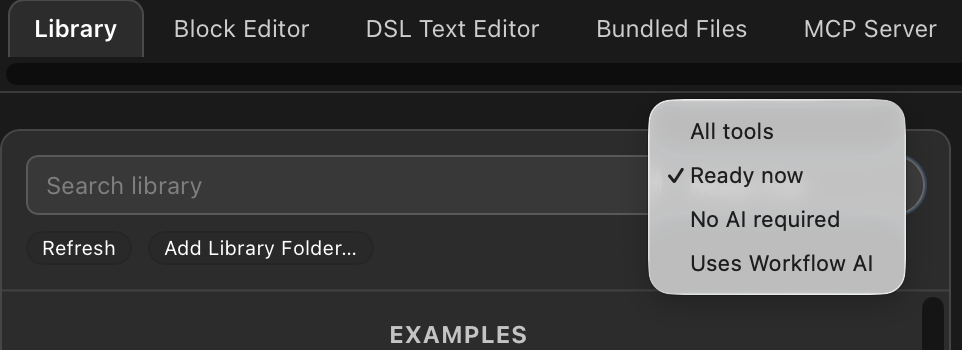
These labels answer different questions. No AI required means no AI-service account, subscription, or per-run AI cost is needed. A tool may still need a local Runtime Pack such as Python or FFmpeg. Runtime Packs are a one-time installation, can also be imported offline, and then run locally without a subscription.
Filtering preserves the folder hierarchy. Folders without a visible match stay available but begin collapsed; folders leading to matches open automatically. You can still expand any other folder to select it, create subfolders, or save tools there. If Automation Agent cannot inspect a document, it remains visible under All tools rather than silently appearing in filtered results.
2. Run Or Adapt A Finished Tool
Choose a tool marked Ready to run, review its description, and run it from the Library preview. Automation Agent checks its requirements before replacing the current editor document or starting execution.
You can also open an example in the Block Editor to see how it works. Duplicate or save an adapted version in your User Library when you want to change inputs, reporting, naming, or other behavior.
See The Script Library for the available workflow categories and a fuller explanation of readiness.
3. Connect AI For The Full Experience
Open the existing AI Setup tab and click Start Guided Setup to connect a supported Assistant to Automation Agent and, when needed, configure Workflow AI. AI setup is not required for every ready-made tool, but it unlocks the central Automation Agent workflow:
- ask an Assistant to inspect the active Premiere project and solve a new, project-specific task;
- create, validate, test, and repair workflows with AI help;
- run saved tools that use Workflow AI for bounded judgment steps such as proofreading, translation, classification, or semantic organization.
Automation Agent distinguishes two AI roles:
- The Assistant is the AI application you talk to, such as the Codex surface in the ChatGPT desktop app or Claude Code.
- Workflow AI is what a saved workflow calls while it runs, such as Codex CLI, Claude Code CLI, or a local LM Studio provider.
The ChatGPT desktop app and Codex CLI can be related on some installations, but they are not the same setup role. Guided Setup checks and explains each one separately. One connected Assistant and one tested Workflow AI provider are enough for the usual AI-powered workflows; you do not need all the listed agents. Continue with Set Up Your AI or AI Setup Roles.
4. Follow A Missing Requirement
When a selected tool is not ready, its Library preview explains what is missing and routes you to the existing setup area:
- Open AI Setup opens the normal AI Setup tab for a missing Workflow AI provider.
- Open Runtime Packs opens the normal Runtime Packs tab for Python, FFmpeg, FFprobe, or related local tools.
These buttons do not start a second setup wizard. They take you to the same tabs used for normal configuration and maintenance. After a provider or runtime changes, the Library refreshes its readiness results without rebuilding the whole Library.
Where To Go Next
- Set Up Your AI for the recommended full experience
- The Script Library for ready-made tools and readiness filters
- Ways To Run Automations for choosing between Library, live Assistant, and saved workflows
- Runtime Packs for subscription-free local media and data processing
- Workflow Recipes for concrete Premiere editing tasks