Permissions and Safety
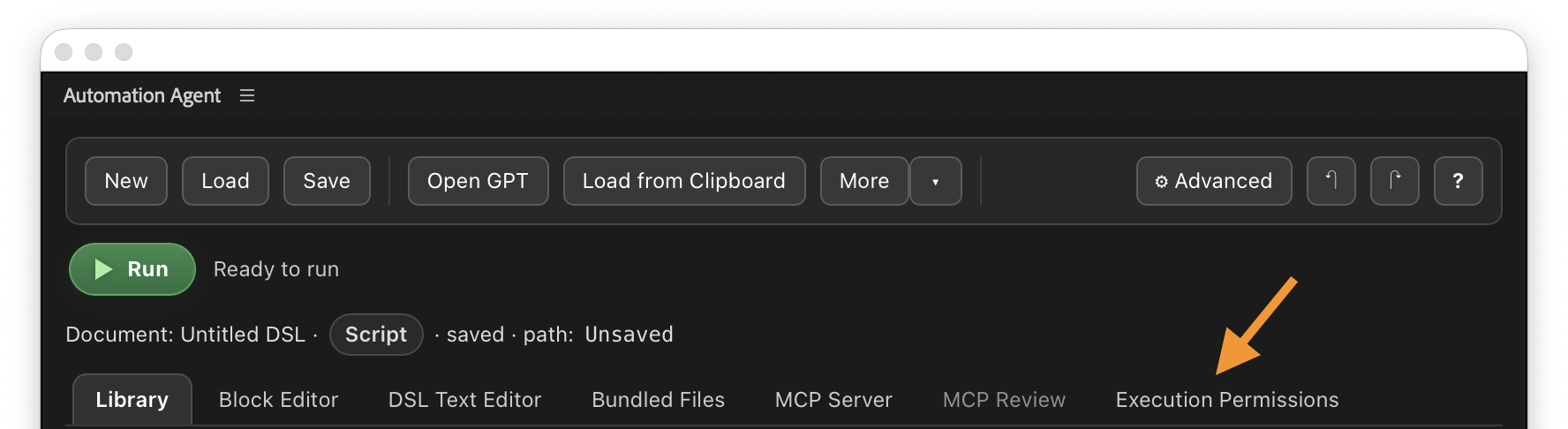
Automation Agent for Adobe Premiere uses a permission system to control what a script or live agent is allowed to do before it runs. This applies to both major workflow models:
- saved scripts created manually or with an Assistant configured in AI Setup
- live tasks executed through the MCP workflow
Permissions are part of the product model, not only a setup detail. They let you use AI-assisted or agent-driven workflows without granting broad project and filesystem access by default.
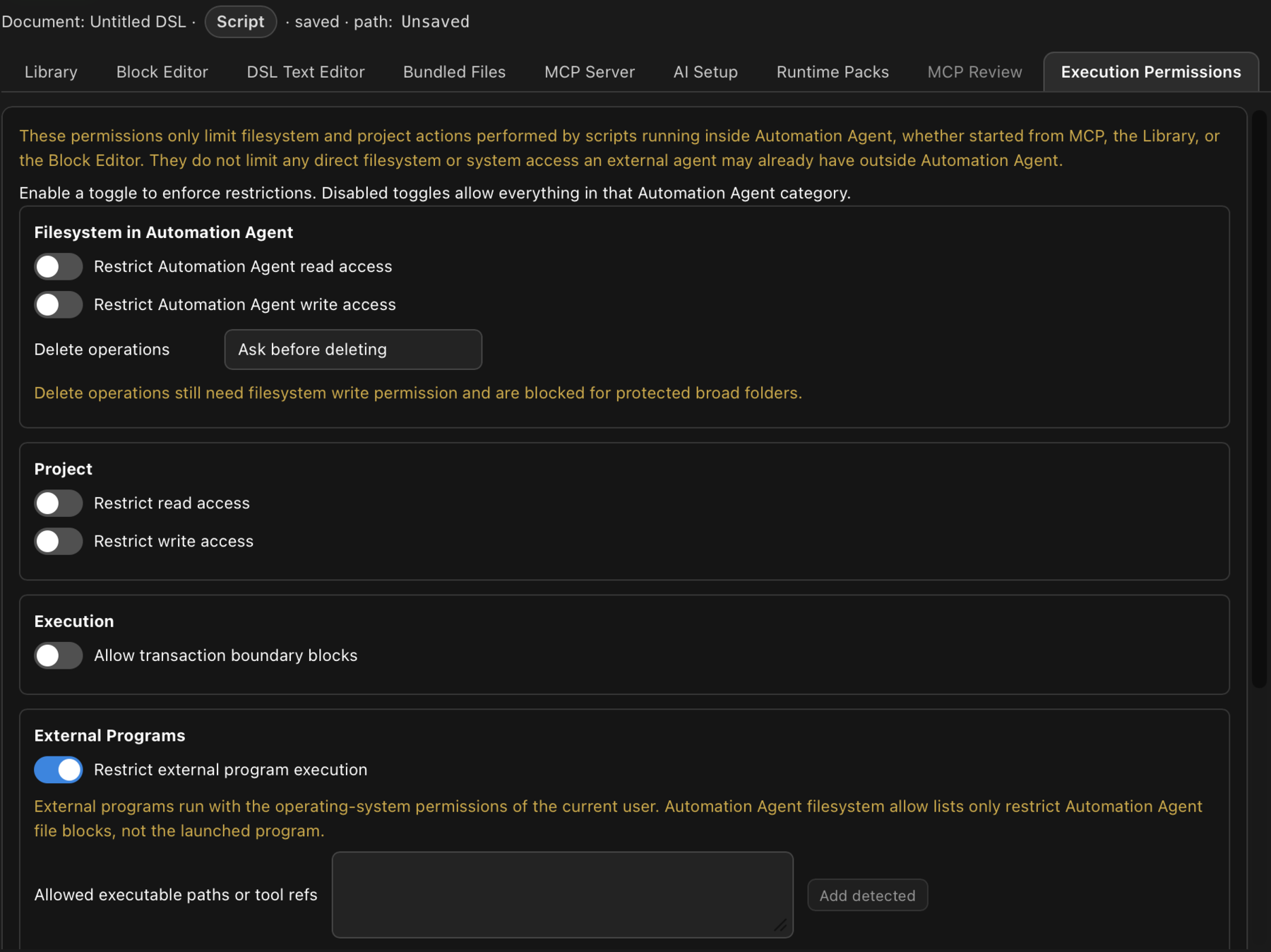
What You Can Restrict
Permissions can be limited separately for Adobe Premiere and the filesystem.
Adobe Premiere permissions
premiere.readAllowpremiere.writeAllow
Use these to decide which parts of the Premiere project a script may inspect or modify.
Premiere allow entries are matched against canonical reference paths where possible. That means access should depend on the project object being referenced, not on whether the script used a short path, a project-qualified path, or a special reference such as ::SEQ\ACTIVE.
::SEQ\ACTIVE has stable permission semantics: when it appears in a Premiere allow list, it is resolved to the active sequence for that execution and cached. If a script later activates another sequence, that does not expand the permission to the newly active sequence.
Allow entries that cannot be resolved to existing Premiere objects do not grant access. Operations that create new bins still require write access to the existing parent bin where the new bin is created.
Use marker namespace prefixes to allow marker-only access without allowing broader sequence or clip edits. For example, writeAllow: ["::SEQ\\ACTIVE::MARKER"] allows marker changes on the sequence that was active for this execution, but does not allow moving clips, changing tracks, or editing sequence properties.
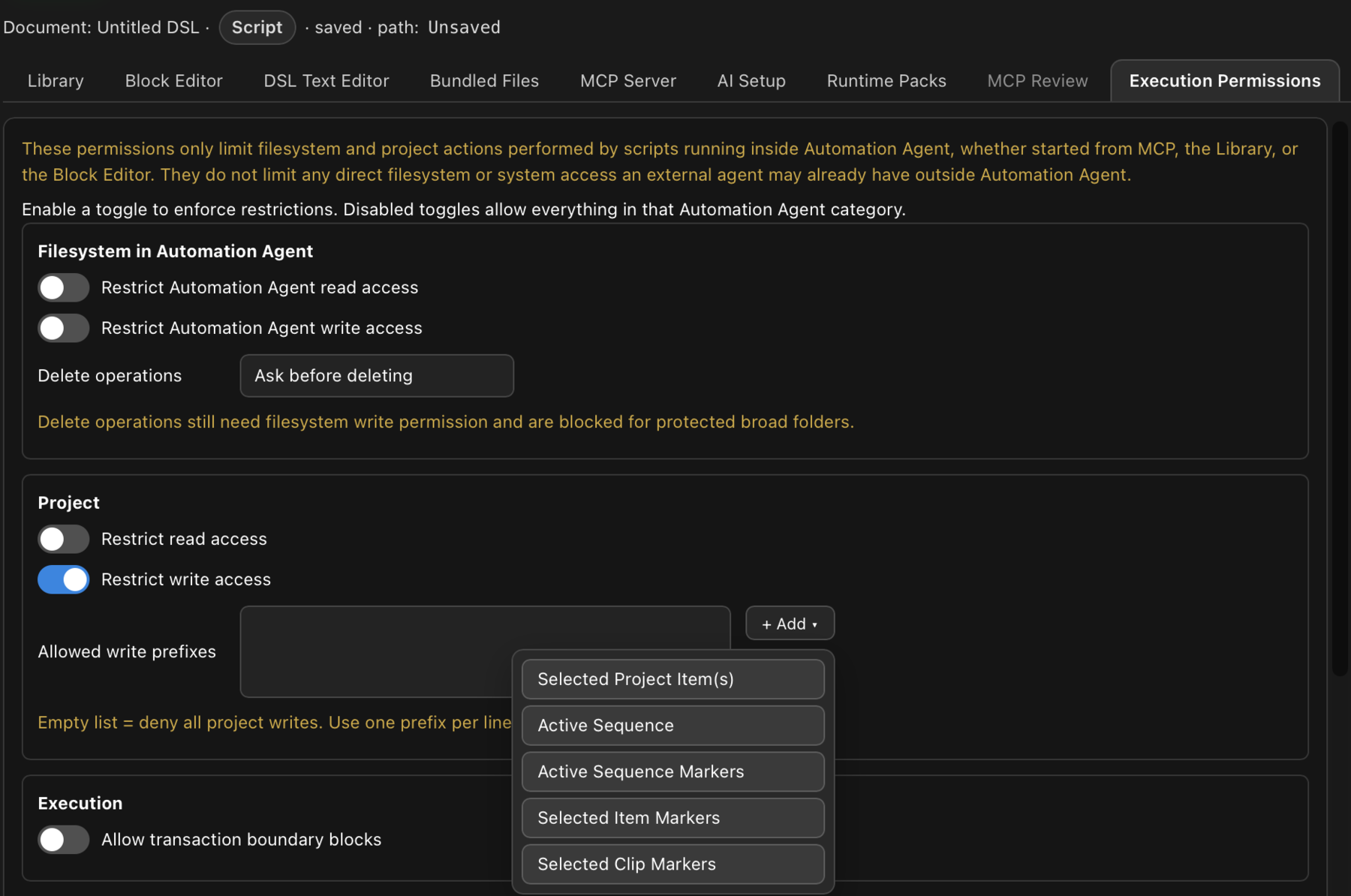
Filesystem permissions
filesystem.readAllowfilesystem.writeAllowfilesystem.deleteMode
Use these to decide which folders or files a script may read from or write to, and whether delete operations are allowed, denied, or require confirmation. Delete operations require confirmation by default, still need filesystem write permission, and Automation Agent blocks protected broad delete targets such as filesystem roots, the user's home folder, and top-level user folders. Delete confirmations show the workflow label, target, recursion scope, and the block's optional reason.
These allowlists govern Automation Agent's permission-checked file operations and explicit destinations on supported export and save blocks. They are not an operating-system sandbox around Premiere or Adobe Media Encoder: Adobe may create caches, temporary files, and other output independently. For sequence, project-item, and file render blocks, an explicit outputPath is checked against filesystem.writeAllow. If outputPath is empty, Premiere or Media Encoder chooses the destination; that host-selected path cannot be constrained by this allowlist. Use an explicit output path when the destination must stay within a reviewed folder, especially for direct export, which may write without another user decision.
Practical Meaning
This lets you decide whether a script should be able to:
- only inspect project state
- modify the Premiere project
- read external files from disk
- write files or save changed projects
In other words, you do not have to give every script full access. You can start narrow and open up only what is necessary.
Recommended Way To Work
When testing a new script or agent workflow:
- start with the smallest useful permission scope
- allow read access before write access whenever possible
- restrict filesystem access to specific folders instead of using broad wildcards
- expand permissions only after the workflow is behaving as expected
A Simple Mental Model
Save a script when you want reviewed logic that can become a reusable tool.
Use a live MCP session when the workflow needs live project inspection, transcript or visual context, external files, or decisions that must be made during execution.
In both cases, use permissions to decide how much reach the current workflow should have.
That combination is important: strong automation becomes much more practical when access is explicit, reviewable, and limited to the work the user actually approved.
Permissions are only one part of the picture, though. If your production environment has limited or no internet access, the bigger question is whether the workflow needs a live agent during execution or only during script authoring.
For that distinction, see High-Security and Restricted-Network Environments.
For the broader picture of execution models, see Ways To Run Automations.