Create And Save Your Own Scripts
This workflow creates reviewed, reusable scripts for Automation Agent for Adobe Premiere.
Your configured Assistant — Codex, Claude Code, or Claude Desktop — uses Automation Agent's MCP workflow to draft, validate, and refine the script. You stay in a reviewable environment the whole time: the generated workflow can be inspected in blocks, tested with permissions, and saved in the library.
Use this model when the task should become a repeatable production step instead of a one-time live agent session.
How It Works
The typical loop looks like this:
- Make sure an Assistant is connected. If not, run Guided Setup first.
- Describe the Premiere task you want to automate — and say that you want it as a saved, reusable script.
- Let the Assistant inspect, probe, validate, and draft the workflow where needed.
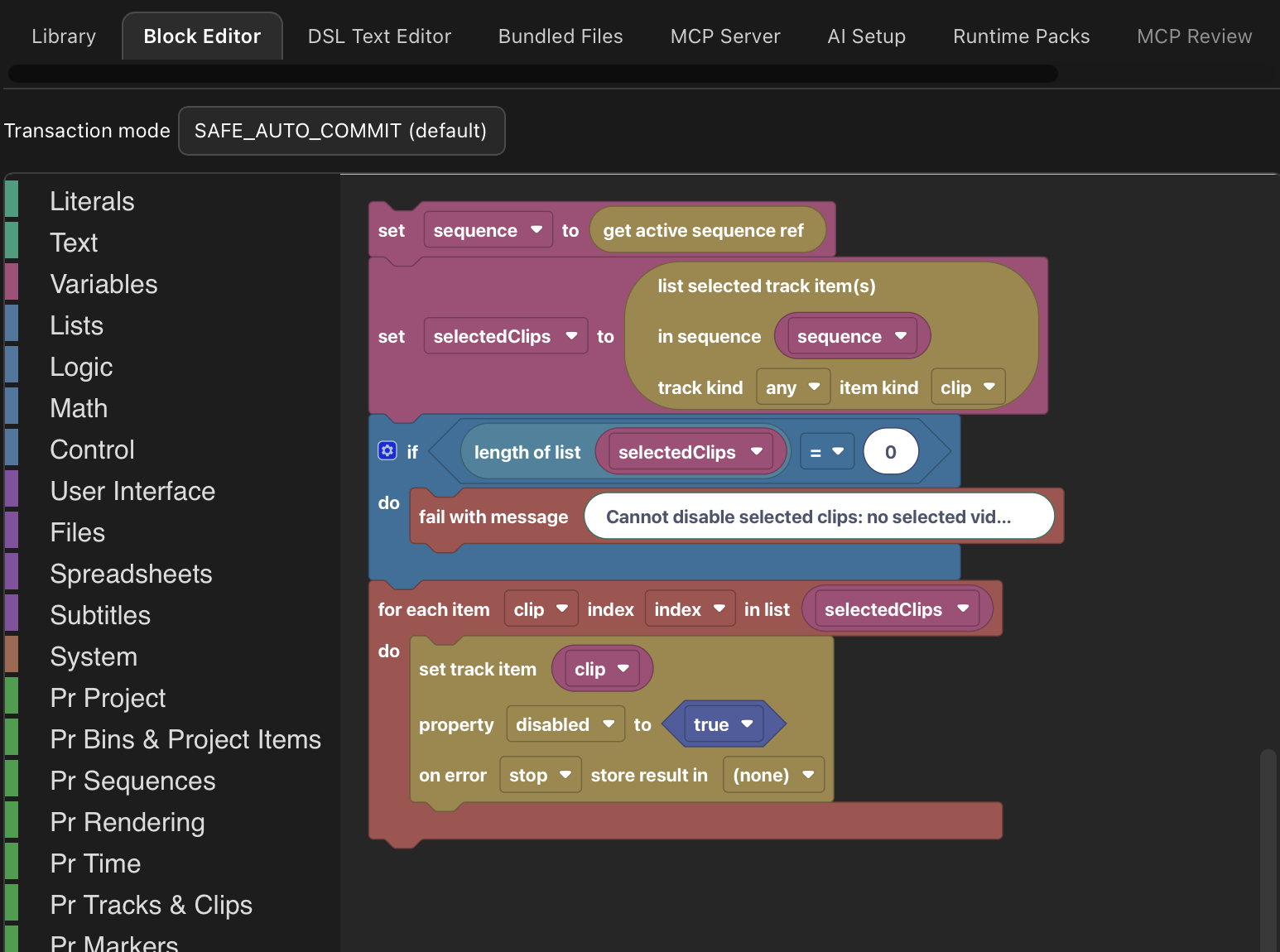
- Review the script in the block view, adjust it if needed, and run it with scoped permissions.
- Save the finished script in your library so you can reuse it later.
The important part is the handoff from AI authoring to visible workflow logic. The script is not a black box: you can inspect the blocks, change the logic, test with narrow permissions, and keep the result as a normal Automation Agent automation.
Video Walkthrough
This walkthrough creates a first script, develops a practical project-setup tool with an Assistant, tests it in Premiere, and packages it as a portable ABSCRIPT. It also makes the authoring-assistant versus Workflow-AI distinction concrete.
Three Valid Ways To Use It
Let the Assistant do most of the work
This is the strongest path when you already know the result you want, but do not want to build the script yourself block by block. A configured Assistant can use Automation Agent through MCP to inspect the project, validate Runtime DSL, and generate the automation. You inspect the result before using it.
Build everything yourself in Blockly
Automation Agent for Adobe Premiere is not only for AI-generated scripts. You can create automations directly in the block editor and treat it as a visual workflow environment for Adobe Premiere.
Combine both approaches
This is often the most practical mode. Let the Assistant create the first draft, then use the block editor to understand, repair, adapt, or extend the automation.
That combination is one of the main strengths of Automation Agent for Adobe Premiere: AI can accelerate authoring, while the block view keeps the logic visible and editable.
Add Workflow AI Steps For Judgment Work
Not every step of a workflow can be deterministic. Proofreading a transcript, naming clips by content, or classifying takes all need actual AI judgment — every run, not just during authoring.
For those steps, ask your Assistant to build the script around an askAgent step that calls a configured Workflow AI provider. For example:
Build this as a saved Automation Agent script. Keep the Premiere and file-handling steps fixed in the workflow. For the proofreading step, call Workflow AI so the script works with whichever provider is configured — Codex CLI, Claude Code CLI, or a local LM Studio model.
The result is the best of both worlds: the plumbing is frozen and reviewable, and the AI only spends time and tokens on the part that genuinely needs it. The ready-made transcript workflows in The Script Library are built exactly this way.
For the provider setup, see AI Setup Roles. If the saved workflow should later run offline with a local model, see Developing Offline Workflows Online.
Why This Workflow Is Good For Reusable Automation
The output of this workflow is usually a script you want to keep. Once it works, you can organize it in your library and run it again whenever you need the same automation.
That makes it different from a live assistant interaction. The model does not have to solve the same implementation problem on every run. A reviewed script can run faster, more predictably, and with the same permission scope each time.
That makes this workflow a good fit for:
- recurring project setup tasks
- repeated import or organization steps
- timeline preparation and cleanup tasks
- reusable utility scripts for editors and assistants
- team-approved workflow steps
- restricted production machines that should run reviewed logic locally
Use Save Script Only to save a normal script as .dsl.json, or an unpacked ABScript workflow as .abscript.json with its file references. When an ABScript workflow should travel with media, presets, MOGRTs, project files, or Python helpers, use Save Script + Files to create a portable .abscript package. The unpacked JSON document remains useful for editing and Library workflows, but its companion files must stay available separately. See Embedding Files for the format overview and an example.
It is also the better fit for many high-security production environments, because AI can stay on the authoring machine while the saved script is later run locally on a restricted machine.
For that deployment model and its limits, see High-Security and Restricted-Network Environments.
If you want to launch those saved scripts from keyboard shortcuts, Stream Deck, Touch Portal, or similar tools, continue with Keyboard Shortcuts and Remote Triggers.
Why It Is Good For Learning
Reviewing a generated script in Blockly is also a practical way to learn how Automation Agent for Adobe Premiere works. The Assistant can give you a head start, and the visual editor lets you inspect the result instead of treating it as a black box.
When a first draft is close but not quite right, refining it in the block editor is usually faster than starting over.
When To Stay In A Live Session Instead
Use Agent Workflow via MCP directly when the task is a one-off: the agent must inspect the active project, use current transcript or frame context, and finish a project-specific job that is not worth formalizing as a reusable script.
Use Ways To Run Automations if you want the full picture of library scripts, live sessions, saved scripts, and offline variants.
Related Pages
- Set Up Your AI
- Ways To Run Automations
- Agent Workflow via MCP
- The Script Library
- Permissions and Safety
- High-Security and Restricted-Network Environments
Start from an installed example
Name the example and the changes you want. With file access to your User Library, your Assistant can discover the installed tool, make an independent copy with its companion files, edit that copy, and validate the saved document. Further refinements use the same files. See Make your own variant of an example. Validation checks document structure and declared asset availability; test the requested behavior before relying on the finished workflow.