Agent Workflow via MCP
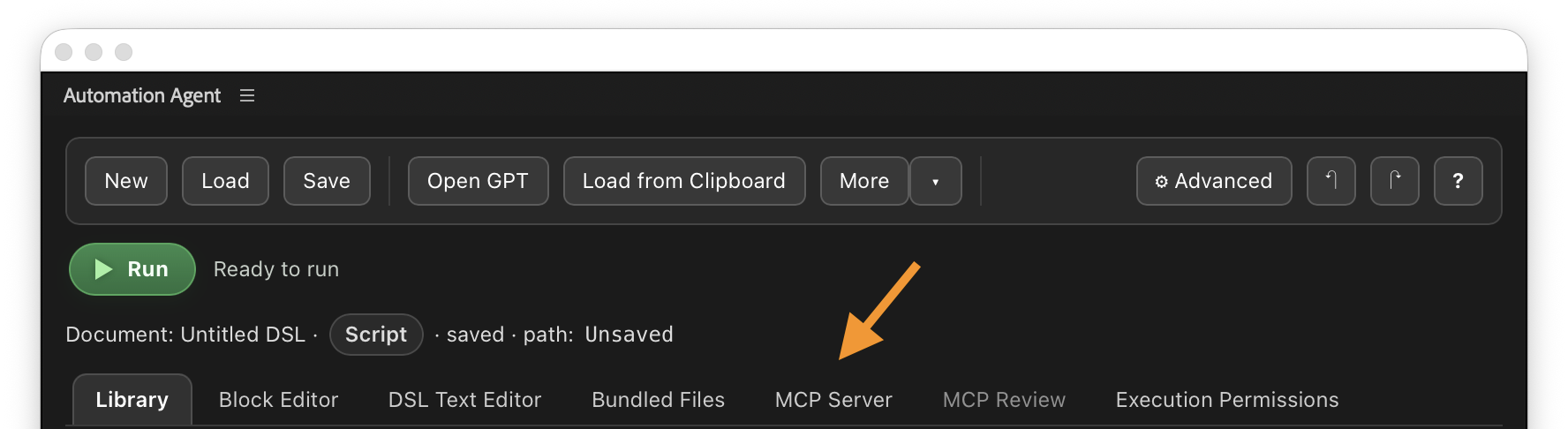
The MCP workflow is the live-agent execution model for Automation Agent.
Instead of only generating a script for later use, an agent can inspect the current Premiere project, run read-only probes, validate Runtime DSL, execute controlled actions, and decide the next step from the project state it just observed.
This is the right model for workflows that need timeline understanding, transcript mapping, targeted frame inspection, external context, or project-specific decisions during execution. It also means setup and permissions matter more: the MCP bridge must be connected, the agent must be available, and write access should be scoped before changes run.
What Makes It Different
A saved script runs logic that was fixed before the run started. In the MCP workflow, the agent instead operates as a controlled workflow executor that decides as it goes:
- inspect the current project state
- run non-destructive probes before writing
- validate Runtime DSL before execution
- carry out permission-scoped tasks in the active project
- generate reusable automation when that makes sense
- stop for review before risky or uncertain write steps
- skip the reusable-script step when the goal is simply to finish the current project-specific job
When To Use This Workflow
Use MCP when the workflow cannot be fully known before the run starts.
It is a good fit for situations such as:
- project-specific cleanup or restructuring
- multi-step editing assistance
- exploratory tasks where the next action depends on what the agent finds
- jobs that are easier to delegate directly than to formalize as a reusable tool first
- transcript-driven or visually assisted timeline analysis
- workflows that combine Premiere state with scripts, notes, spreadsheets, or other external context
Because this workflow depends on a live agent session, it is usually not the right fit for offline or tightly restricted production machines unless those environments provide an approved fully local agent-and-model stack.
For the exact distinction between reusable local scripts and live agent-in-the-loop execution, see High-Security and Restricted-Network Environments.
Reusable And Non-Reusable Outcomes
This workflow can still produce reusable scripts, and those can be saved for later use just like scripts created in the simpler workflow.
But it also supports a more direct mode: the agent can carry out a task in the current project without first turning everything into a reusable library script.
That is the key distinction between the two execution models:
- a saved script is the easier path for repeatable, reviewed automations
- the live MCP workflow is the stronger path for live project inspection and controlled multi-step execution
When an MCP workflow proves useful, consider turning it into a saved script — with Workflow AI steps for the parts that need judgment — an implementation prompt, or a documented recipe. That reduces repeated discovery work and makes future runs faster, cheaper, and easier to review. For that pattern, see Create Your Own Recipes and Create And Save Your Own Scripts.
If you only want to launch an already saved script from a shortcut, Stream Deck button, or similar trigger, use Keyboard Shortcuts and Remote Triggers instead.
Assistant Vs Workflow AI
Most of this page describes the Assistant role: the live agent you are talking to while Premiere is open.
Some saved workflows can also use Workflow AI later. That is a separate provider profile the workflow calls from inside an askAgent step.
For example:
- Codex or Claude Code might be your Assistant while you build the workflow.
- LM Studio might be the local Workflow AI that proofreads transcript chunks when the saved workflow runs later.
- Codex CLI or Claude Code CLI might be configured as stronger Workflow AI providers for more demanding saved workflows.
You can configure these roles separately in AI Setup. For the full distinction, see AI Setup Roles.
Setup And Approvals
Because MCP gives the agent live access to project state, setup and approvals matter more here.
Before using this workflow, you should:
- configure an Assistant such as Codex or Claude — the panel's Guided Setup walks you through it
- let Automation Agent start the local MCP server, or start it from the
MCP Servertab if you turned automatic start off - decide how approval should work
- configure permissions so the agent only gets the access it actually needs
You should also confirm that the target environment allows the required client, bridge, and whichever model runtime the agent needs for every run. In some environments that means outbound access. In others it may mean an approved local model deployment. If neither is available, use the reusable script workflow instead.
If you are just getting started, use Ways To Run Automations before choosing a client. It explains when a library script, live MCP agent, saved script, or local model path is the right fit.
For an overview of the most relevant MCP-capable clients and which ones are the best fit for Automation Agent for Adobe Premiere, see Supported Agents And MCP Clients.
If you need a local model path, see LM Studio Setup. LM Studio can connect to the local HTTP MCP server, but complex workflows usually need more explicit implementation prompts than Codex or Claude Code because LM Studio does not automatically receive the same Automation Agent guidance layer.