Embedding Files
A saved workflow can keep its script as JSON or travel as an .abscript package with companion files inside it. You can bundle any files or entire folders—for example, media, presets, Premiere projects, or Python helpers.
There are three file extensions you will encounter. The key distinction is whether companion files are referenced separately or actually packed into the saved file.
Script File Formats
| Format | What it contains | When to use it |
|---|---|---|
.dsl.json | A normal script document, with workflow logic and optional title, description, and requirements. It has no ABScript asset list. | Scripts that do not need packaged companion files. |
.abscript.json | An unpacked ABScript document: workflow logic plus file or folder references, or placeholders asking you to select them. The companion files themselves are not embedded. | Editing, Library workflows with separate companion files, or preparing a bundle before all files have been selected. |
.abscript | A packed ABScript workflow with its bundled files inside the package. | Moving or sharing a workflow together with the files attached to it. |
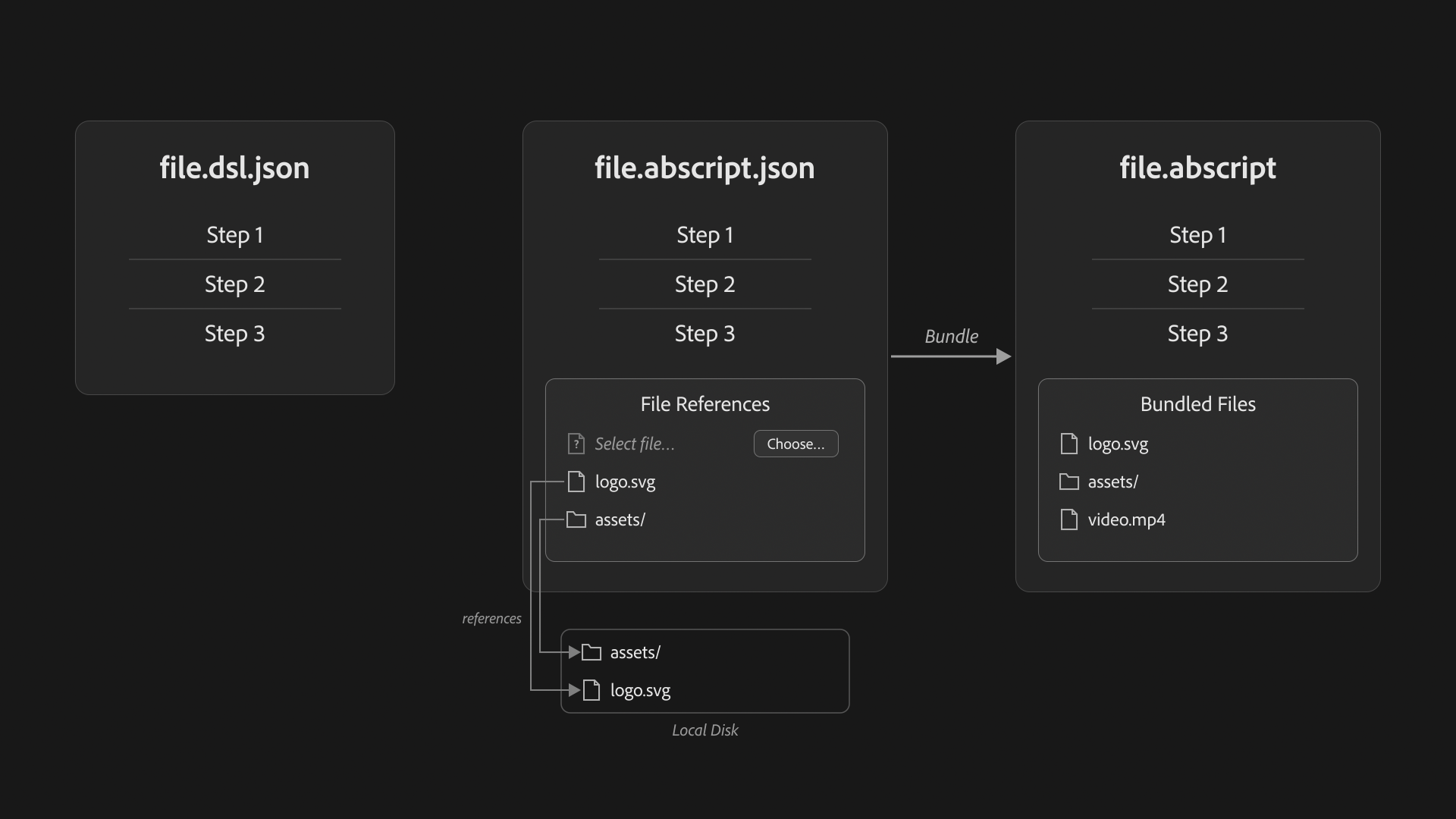
.abscript.json is the editable, unpacked form of an ABScript workflow, not just a temporary file to discard. Automation Agent can load and run it when the referenced files are available or the missing selections have been completed. It can also be the starting point for a portable .abscript package.
Bundling includes the files attached to the workflow. It does not automatically include every external file path used by the script, install Runtime Packs, or configure Workflow AI on another machine.
Save Script Only Or Save Script + Files
The panel's save menu exposes these two choices:
| Save command | Normal DSL document | ABScript workflow |
|---|---|---|
| Save Script Only | Saves .dsl.json. | Saves .abscript.json, retaining file references and selection placeholders without embedding the files. |
| Save Script + Files | Saves .dsl.json; there is no ABScript asset list to bundle. | Builds a .abscript package containing the workflow and its attached files. |
For an ABScript workflow, Save Script Only does not remove its file references or turn it into a plain DSL script. It saves the unpacked document. The referenced files must remain accessible for later execution or packaging; unresolved placeholders can remain in that document until the files are selected.
Before Save Script + Files can complete, missing file or folder selections must be resolved. The panel opens the save preflight and directs you to Bundled Files to complete them.
Example: A Library Workflow With A Python Helper
An unpacked workflow might look like this on disk:
My Workflow/
  workflow.abscript.json
  .assets/
    helper.py
The JSON document references .assets/helper.py relative to its own location. The Python code lives in the separate file, not inside the JSON.
- Save Script Only writes the JSON document without copying
helper.py. If you save it somewhere else, make sure its references still resolve there. - Save Script + Files builds a single
.abscriptfile containing the workflow and the attached helper. You can move or share that package without sending the helper separately. - To share the unpacked version, move or copy the whole tool folder, including hidden
.assetscontents, and preserve its relative folder structure.
The official Script Library uses .dsl.json and unpacked .abscript.json documents; workflows that need companion files ship those files alongside the document. This is why a Library entry can already be ready to run without being a packed .abscript file.
When you adapt an example, Save Current Here chooses Save Script + Files automatically for an ABScript workflow with attached files. Save Script Only remains an explicit option when you want to manage the unpacked document and its file references yourself.
Why Bundled Files Exist
Bundled files solve a portability problem. Without them, a workflow may depend on a path that only exists on the machine where it was created. A .abscript package carries the attached files with it, so those files can be found even when local paths differ.
This is useful when you move scripts between machines, share them with teammates, or keep reviewed production workflows together with their supporting files.
The Bundled Files Tab
The Bundled Files tab is where you manage an ABScript workflow's attached files, whether it is still unpacked or already loaded from a package.
There you can:
- see the file and folder entries attached to the open workflow
- add, replace, or remove them
- complete missing selections
- check which companion files need to be available before running or saving a package
An unpacked .abscript.json document may already point to all the files it needs. Alternatively, it may contain placeholders that ask you to choose a file or folder locally. When you attempt to run a workflow with missing selections, the panel can ask for them before continuing.
What The Agent Usually Does For You
Your connected Assistant prepares the script for you. It can define file-selection placeholders so you choose the actual media, presets, MOGRTs, or projects locally in Automation Agent.
An Assistant with access to your local files can prepare an unpacked workflow with real file references, use placeholders, or build a package with the real files when you ask for embedded output. Plain .dsl.json remains useful when no attached files need to travel with the workflow.
Once the workflow is reviewed and saved, you can run it again without the Assistant designing it again. Only optional Workflow AI steps call an AI provider during execution; see AI Setup Roles.
Technical Background
When Automation Agent loads a packed .abscript workflow, it unpacks the bundled files into a managed local cache. References to bundled assets then resolve to those extracted local files before the script logic runs. Automation Agent manages that extraction for you.
An unpacked .abscript.json workflow instead obtains its files from the references or selections in the document. Relative references, such as the Library's companion-file paths, resolve relative to the JSON document's location.
When To Choose A Bundled Script
Choose .abscript when attached files should travel with the automation as one package.
Choose .abscript.json when you want an editable, unpacked workflow and can keep its companion files available separately, or when file selections still need to be completed.
Choose .dsl.json when the workflow needs no ABScript asset list. It can still work with ordinary local paths, but those files are not packaged with the script.
Good Starting Examples
To see workflows with file-selection placeholders, start with these examples: