Set Up Your AI
Setting up Automation Agent for Adobe Premiere means connecting it to the AI tools you already have. The panel's Guided Setup handles that for you: it asks which AI tools or subscriptions you use, checks what is already installed where it can, and walks you through the remaining steps one at a time.
You can browse the Library and run ready AI-free tools before configuring AI. AI setup remains the recommended next step because it unlocks live project inspection, AI-assisted workflow creation, and saved workflows with Workflow AI steps. If you have not opened the panel yet, start with the Quick Start.
Most users never need anything beyond this page.
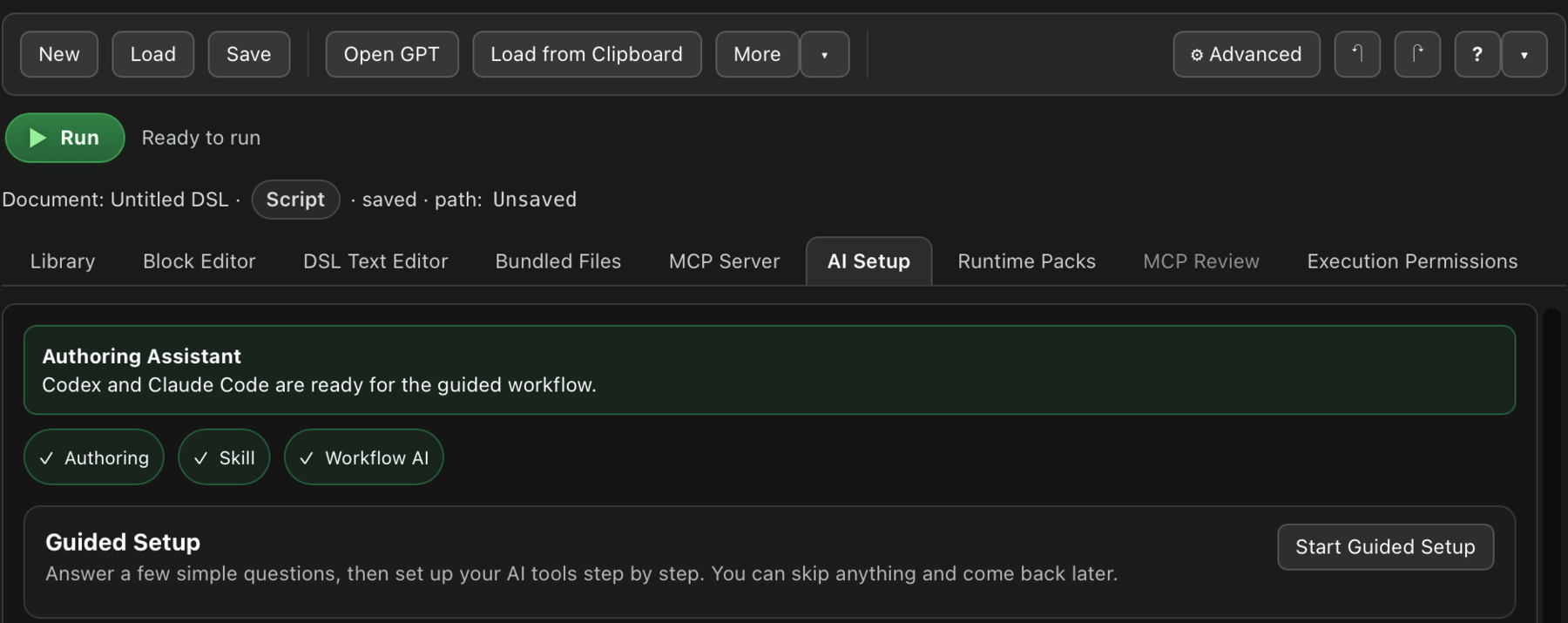
Run Guided Setup
- Open the Automation Agent panel in Premiere Pro.
- Open the
AI Setuptab. - Click Start Guided Setup.
- Select the AI tools you want to use: OpenAI / ChatGPT, Anthropic / Claude, or Local / offline. You can deselect tools that Guided Setup detected but that you do not plan to use.
- Follow the steps for each tool. Guided Setup connects each selected Assistant or Workflow AI provider to Automation Agent, installs the Automation Agent guidance skill where the tool supports one, and verifies the result.
For the usual AI-powered workflows, one connected Assistant and one tested Workflow AI provider are enough. For example, you can use Codex in the ChatGPT desktop app as your Assistant and Codex CLI as Workflow AI. You do not need to set up Claude or LM Studio as well unless you want another provider or a local/offline model. Some Library tools have additional requirements, such as a Runtime Pack or a provider suited to that tool's task.
That is the whole setup. Everything Guided Setup configures remains visible and editable in the normal AI Setup sections afterwards.
Guided Setup does not download or install the AI tools themselves. If you do not yet have a selected tool, install it first, then return to Guided Setup. In particular, using Codex in the ChatGPT desktop app as an Assistant does not guarantee a runnable Codex CLI for Workflow AI on Windows. See OpenAI Codex Setup for the CLI installation and login steps.
What Gets Configured
Guided Setup can configure two different AI roles, and it explains both along the way:
- Assistant: the AI you talk to while you build, test, and run automations with Premiere open — for example the Codex surface in the ChatGPT desktop app or Claude helping you solve a timeline problem.
- Workflow AI: a provider that saved workflows can call later from inside the workflow — for example to proofread transcript chunks or name clips by content. This role is optional for simple workflows, but it is what makes saved workflows really powerful.
If you want to understand the two roles before setting anything up, read AI Setup Roles. If you just want to get going, Guided Setup explains enough as you click through.
Verify The Connection
After Guided Setup finishes, open your Assistant (for example the Codex surface in the ChatGPT desktop app or Claude Desktop's Code tab) and paste:
Can you check whether Automation Agent is connected and whether the Automation Agent guidance/skill is available to you? First list the Automation Agent tools you can see. Then run a read-only check of the current Premiere project and summarize what you found. Do not modify the project.
If the agent lists Automation Agent tools and describes your project, the Assistant connection works. If you also want to run Library tools that use Workflow AI, open AI Setup > Workflow AI and confirm that your chosen provider is saved and its test passes. The Assistant check alone does not test Workflow AI. Then try a Workflow Recipe or run a ready-made workflow from The Script Library.
Manual Setup And Details Per Tool
Guided Setup is the recommended path, but every step can also be done manually. Use the per-tool pages when you want details, troubleshooting, or a manual configuration:
If you use a different MCP-capable client, such as Cursor or Windsurf, see Supported Agents And MCP Clients for the manual connection paths.
Without A Connected Assistant
You can browse The Script Library, load saved workflow files, and edit tools in the Block Editor without a connected Assistant. Choose tools whose requirements you can meet: AI-free tools need no Workflow AI, while other tools may require an AI provider or a Runtime Pack.
For AI-assisted authoring and live Premiere tasks, return to Guided Setup when you can configure a supported Assistant.