The Script Library
The Library tab of the Automation Agent panel is where saved workflows live — both your own scripts and a set of ready-made example workflows that ship with the product.
The Library has two roots:
- Examples: tested workflows maintained by us. They are the fastest way to get real results, and they double as reference implementations you can open in the block editor and learn from.
- User Library: your own saved scripts and everything you adapt from the examples.
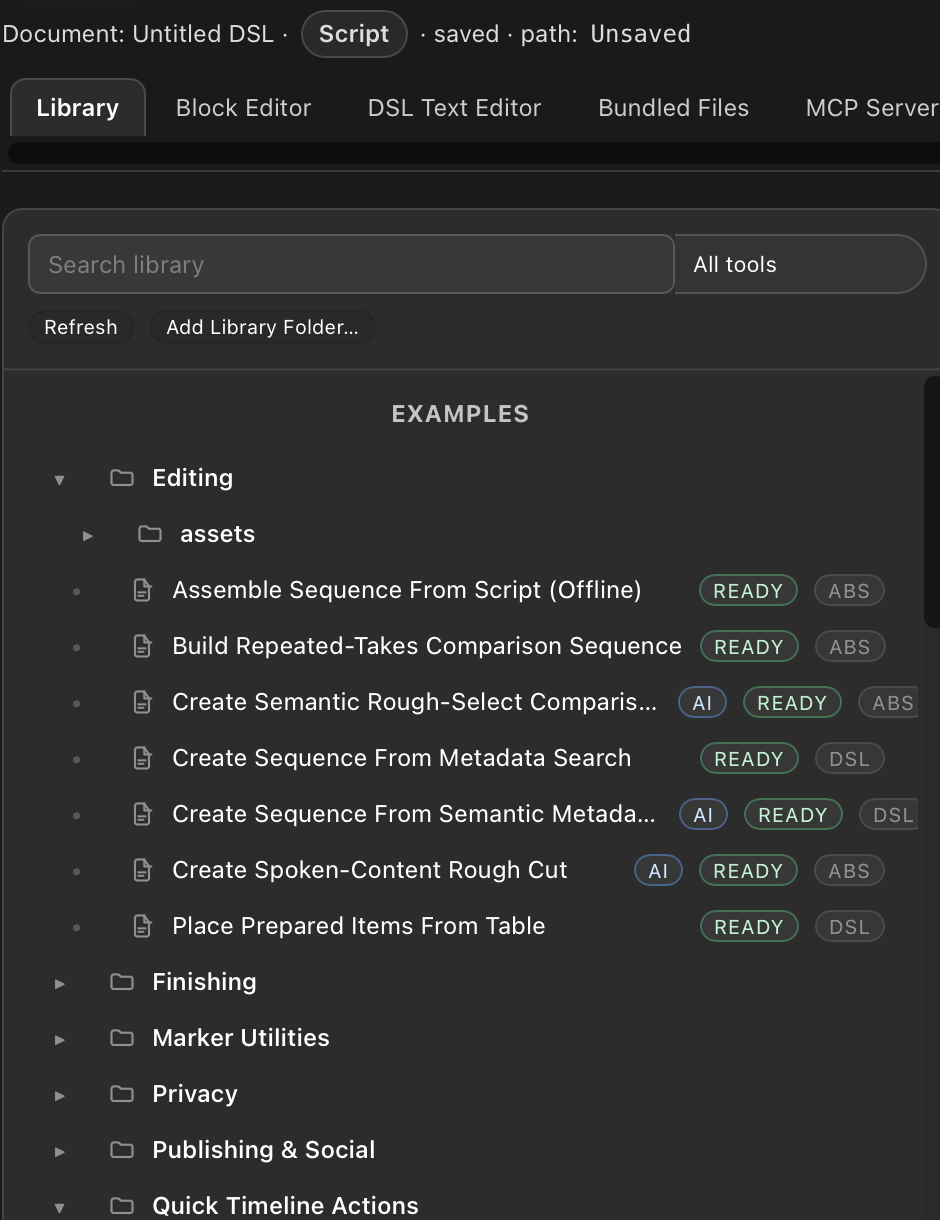
Running a Library workflow needs no prompt authoring and no live Assistant or MCP-agent session. Select it, review what it does and what it requires, then run it. Some tools need no AI configuration at all; others use local Runtime Packs or call a configured Workflow AI provider for the part that needs language or editorial judgment.
Find What You Can Use
The default All tools view keeps every supported Library document discoverable. The filter menu beside the search field offers narrower views:
- Ready now: every currently known requirement is satisfied on this machine.
- No AI required: the workflow does not call Workflow AI while it runs.
- Uses Workflow AI: the workflow contains a Workflow AI step.
No AI required and Ready now are intentionally separate. An AI-free image-analysis or media-processing tool may still need Python or FFmpeg. Those local tools do not require an AI account or subscription: install the matching Runtime Pack once, or import it offline, and the workflow can run locally afterward.
Filtering keeps the Library's folder hierarchy intact. Branches containing matches open automatically; branches without matches remain present and can still be expanded for folder actions such as creating or saving tools. Tools with missing requirements remain selectable under All tools so you can read their descriptions and understand what setup would unlock them. A document that could not be inspected remains visible there instead of being incorrectly included in a filtered result.
What Ships In The Examples
Transcripts & Captions
Transcript Search & Review
- Find Words And Phrases: searches the usable active-sequence transcript locally for one or more words or phrases, using exact or bounded tolerant profiles, and creates verified duration markers. It does not use Workflow AI. See the combined transcript-moment recipe.
- Find Custom Moments: sends either the whole usable transcript or overlapping target sections to Workflow AI, validates and refines the returned text-ID ranges locally, and creates review markers for the moments you described. See the combined transcript-moment recipe.
Transcript Editing & Translation
- Proofread Transcripts: proofreads the transcripts of selected clips, shows validated correction suggestions for review, and optionally imports accepted changes back into Premiere. Used in the proofreading recipe.
- Translate Transcripts: translates selected clip transcripts into a target language with optional project context, terminology, protected exact text, and wording instructions, then imports the result. Used in the translation recipe.
Caption Creation & Export
- Export Clip Transcripts To SRT: creates portable SRT files from complete source transcripts.
- Create SRT From Sequence Transcript: turns Premiere's active-sequence Text-panel transcript into an SRT and reports missing or unreliable timing instead of guessing.
- Create SRT From Reference Script: turns approved plain-text wording into captions timed to the active edit, while a comparison report highlights differences from Premiere's transcription for fact-checking and copyediting. It does not use Workflow AI. See the Caption Toolbox guide.
Caption Text & Localization
- Translate SRT: translates selected SRT files into several languages while keeping timing decisions local.
- Condense SRT: shortens only captions that remain too fast after a text-preserving timing adjustment and keeps every rewrite reviewable. The complete set is documented in the SRT Caption Toolbox.
- Proofread SRT: proposes cue-local corrections, lets you review every change, and writes a timing-preserving sibling file containing only accepted suggestions.
Caption Timing & Layout
- Reflow SRT Captions: completely rebuilds caption and line boundaries with global look-ahead and automatically uses precise saved word timing when available.
- Align SRT Changes To Sequence Cuts: moves nearby SRT caption changes safely onto edit frames from one chosen video track.
- Align Caption Track To Sequence Cuts: previews, applies, and verifies the equivalent timing adjustments directly on one Premiere Caption Track.
Caption Quality & Delivery
- Analyze SRT Readability And Timing: checks subtitle structure, layout, and reading speed and can optionally add review markers to the matching active sequence.
- Create Or Edit Caption Profile: creates and updates reusable caption-setting presets through editor-facing forms without requiring you to edit JSON.
The Workflow-AI-powered tools are examples of the saved-workflow-plus-Workflow-AI pattern: the script handles selection or file discovery, transcript/SRT processing, batching, validation, and local merge or re-import, while a configured Workflow AI provider does only the language work. Each setup dialog gives concrete starting values for Codex CLI or Claude Code and smaller local LM Studio models, and labels project-specific context or instruction fields as optional.
Editing
- Place Prepared Items From Table: maps CSV, TSV or TAB columns, resolves prepared Project Items or filesystem media within selected scopes, previews the first interpreted rows, and places valid rows into a sequence. Each source contributes all of its available video and audio. See the table-driven editing recipe.
- Create Spoken-Content Rough Cut: uses a powerful configured Workflow AI provider to choose one coherent story path from transcribed clips, recursive bins, or speech already arranged and trimmed in the active sequence. It sends the complete usable transcript and complete editorial brief together, then validates and builds one reviewable rough cut locally. See the spoken-content rough-cut recipe.
- Assemble Sequence From Script: matches an exact or near-exact target script against one or more selected source transcripts and creates a new sequence in target-text order. Likely alternatives are stacked, while changed, partial, or missing wording remains visible through markers and gaps. It uses the Python Runtime Pack but no Workflow AI provider. See the transcript-based assembly recipe.
- Build Repeated-Takes Comparison Sequence: finds repeated script-like deliveries across selected transcribed recordings and organizes each passage as a stacked take group. An optional reference script improves matching; the analysis stays local. See the spoken-content comparison recipe.
- Create Semantic Rough-Select Comparison: uses a powerful configured Workflow AI provider to organize freely spoken material, build a possible story order, and stack substantially rephrased alternatives. Codex CLI and Claude Code are the currently tested recommendations for this complete-context editorial task. Local models running through LM Studio have not yet been validated for it. See the semantic variant in the spoken-content comparison recipe.
- Create Sequence From Metadata Search: searches selected clips and bins recursively across names, project-local metadata, imported XMP keywords, and optional media paths, then assembles the matches into a new sequence.
- Create Sequence From Semantic Metadata Search: uses privacy-aware, batched Workflow AI classification to find semantically related selected media, then assembles the validated matches locally in a deterministic order.
Choose Spoken-Content Rough Cut when Workflow AI should select one proposed story. Choose Assemble Sequence From Script when approved target wording defines the edit, Repeated-Takes when the goal is exhaustive take comparison, and Semantic Rough-Select Comparison when semantic alternatives should remain stacked for an editor to choose.
Table placement setup
Before starting Place Prepared Items From Table, activate the intended Timeline. The tool binds that target before setup, asks you to choose one media interpretation for the table, maps the relevant columns, and shows a preview before imports or Timeline changes begin.
The complete Build A Premiere Pro Timeline From A Spreadsheet recipe explains media-reference modes, timing formats, target-sequence choices, collision handling, review steps, and how to turn a production-specific table format into a reusable custom workflow.
Quick Timeline Actions
These small, AI-free commands cover useful Timeline operations that Premiere does not expose directly as keyboard shortcuts. Run them from the Library or bind their Remote Execution URLs to a keyboard shortcut, Touch Portal, Stream Deck, or another trigger tool. See Keyboard Shortcuts and Remote Triggers for setup instructions and the matching icon pack.
Track Solo
- Solo V1/A1 Tracks, Solo V2/A2 Tracks, Solo V3/A3 Tracks, Solo V4/A4 Tracks, and Solo V5/A5 Tracks: make the requested video and audio Tracks visible and audible where present while muting the other Tracks of each affected media type.
- Solo Next V/A Tracks and Solo Previous V/A Tracks: step through every available video/audio Track number, wrap at either end, and use the current visibility and mute state as their starting point.
- Unsolo All V/A Tracks: makes every video track visible and every audio track audible again.
- Solo Tracks Containing Selected Clips: solos the video and audio Tracks that contain the currently selected clips while leaving an unrepresented media group unchanged.
Selected Clips
- Disable Selected Clips and Enable Selected Clips: change the enabled state of the selected video and audio clip components.
- Select All Disabled Clips: replaces the Timeline selection with every disabled video and audio clip in the active sequence.
Finishing
- Build Auto-Conform Source Index: pre-indexes selected original source footage into a reusable local Auto-Conform workspace for later reference-edit reconstruction runs.
- Reconstruct Edit From Reference: clones the source sequence before mutation, searches selected original Project-panel media for every reference shot, and reconstructs winners plus optional ranked alternatives as enabled paired V/A lanes. It releases the clone only after placement and winner-only mute verification; unsupported audio layouts remain visibly incomplete. It can use Premiere Scene Edit Detection when the reference is one flat clip. See the complete reference-conform recipe.
- Detect Scene Edits In Selected Clips: runs Premiere's native Scene Edit Detection on selected timeline clips and applies cuts, creates source markers, or creates Project-panel subclips. See the Scene Edit Detection recipe.
- Slip Clips To Match Reference: fine-conforms selected clips or all clips on V1 by slipping their source frames to the best visual match in the overlapping V2 reference. Supports bounded and entire-source searches, and adds color-coded markers for review. See the timing-refinement recipe.
- Match Clips To Reference Framing: matches selected or all clips on a chosen target track against a full-frame reference on another video track, recovers Position and Scale, and applies the values back to the target clips. Uses the FFmpeg and Python Runtime Packs for frame extraction and image analysis. See the framing recipe.
These tools form a staged reference-conform workflow without forcing every project through every stage: detect boundaries when necessary, reconstruct missing shots, refine source timing, then recover framing only when the approved composition differs.
Privacy
- Pixelate Faces In Active Sequence: detects faces in V1 clips and pixelates them non-destructively with keyframed Mosaic and Crop copies on the Tracks above.
Publishing & Social
- Create YouTube Chapters From Active Sequence: analyzes the usable spoken content in the active edit, creates verified chapter point markers, and can copy matching YouTube-style chapter text. It requires the Python Runtime Pack and a powerful configured Workflow AI provider such as Codex CLI or Claude Code. See the YouTube chapters recipe.
- Find Highlights And Teasers In Active Sequence: proposes scored duration markers for transcript-based teasers, highlights, pull quotes, and social cutdowns. It has the same Python and powerful-provider requirements. See the highlights and teasers recipe.
Both tools analyze transcripts only. Use their live-agent recipe variants when title cards, B-roll, screen content, silent reveals, or other visual evidence must influence the result. Codex CLI and Claude Code are the currently tested recommendations for these complete-context editorial tasks. Local models running through LM Studio have not yet been validated for them.
Marker Utilities
The matching Marker Utilities icon pack provides compact and labeled artwork for Stream Deck, Touch Portal, and other Remote Execution buttons.
- Mark Used Ranges On Selected Project Clips: refreshes color-coded markers on selected source clips to show which video and audio ranges are used by the active sequence and its supported ordinary nests. See the source-range usage recipe.
- Copy Markers From Selected Timeline Clips To Sequence: copies the markers from selected clips to matching positions in the active sequence. Linked audio and video selections are handled once per clip placement.
- Copy Sequence Markers To Selected Timeline Clips: copies fully contained sequence markers to their matching source positions on the selected clips. This also works for reverse-speed clip placements.
- Export Sequence Markers To SRT and Import SRT As Sequence Markers
- Export Sequence Markers To YouTube Chapter Text and Import YouTube Chapter Text As Sequence Markers
The four marker import/export helpers previously listed under Markers now live under Marker Utilities. Marker Utilities is organized into Copy, Delete, and Import & Export. The new transcript-analysis tools live under Publishing & Social because their purpose is editorial content analysis; markers are only how Premiere displays their results.
Rendering
- Render Frames At Sequence Markers
- Render Sequence Marker Ranges
- Export Timeline Clips As Separate Files: exports selected clips, one chosen video track, or all video tracks as independent files. Choose the full visible and audible Timeline result, an isolated video clip with only effects applied directly to that clip, or the used source-file range without Timeline effects. It needs no Runtime Pack; source-file mode additionally requires a compatible installed Adobe Media Encoder.
What Some Workflows Need First
Library workflows declare what they require, and Automation Agent shows their current readiness while you browse. It checks again before a run starts:
- The Workflow AI transcript tools need a configured and tested Workflow AI provider — Codex CLI, Claude Code CLI, or LM Studio. The complete-context Publishing & Social tools need a particularly capable provider. Codex CLI and Claude Code are the currently tested recommendations; local models running through LM Studio have not yet been validated for these tools. Open AI Setup takes you to the existing AI Setup tab; Guided Setup covers the recommended configuration.
- Workflows that use external tools need the matching Runtime Pack — for example Python for transcript processing, plus FFmpeg and Python/OpenCV for reconstruction, slip matching, and framing recovery. Open Runtime Packs takes you to the existing Runtime Packs tab. See Runtime Packs.
These actions reuse the normal setup tabs; they do not create separate configuration paths. If a requirement is missing, the workflow does not begin and then fail halfway through.
Review Before You Run
Library workflows follow the same rules as everything else in Automation Agent:
- You can open any workflow in the block editor and read exactly what it does before running it.
- Execution respects the
Execution Permissionstab. Give a workflow only the read and write access it needs — for example, transcript tools only need write access to the clips whose transcripts you want to change. See Permissions and Safety. - Workflows that modify the project confirm or report their changes, and items they cannot process are skipped and reported.
Pause A Long Panel Run
While a workflow started from the Automation Agent panel is running, use Pause to stop it at the next safe workflow boundary. Pause requested means the current block is still working; Automation Agent cannot suspend a running Workflow AI request, Python or FFmpeg process, Premiere operation, render, file picker, or dialog in the middle. The primary control changes to Paused only after that work finishes and the runtime is genuinely waiting. Use Resume to continue or Cancel to stop the run.
A prompt that has not opened yet stays behind the pause boundary and appears only after Resume. A prompt or dialog that was already visible remains usable; requesting Pause does not freeze its existing timeout. If no safe statement boundary remains, Pause is disabled and the Run bar explains why. Workflow progress has priority in the same status area, so the pause explanation appears when no more important progress update is available.
Avoid changing relevant Premiere project state while a workflow is paused. The workflow keeps its existing references and validations, but a manual edit can invalidate assumptions made by completed blocks. A paused run is in-memory state and does not survive panel reload, extension unload, or Premiere restart. Reloading requests cancellation of the old run and waits for it to finish. If a canceled host operation still does not return, reload the panel; after the recovery grace period the Run bar offers Discard previous run with a warning that the underlying operation may still finish.
Pause/Resume is currently available only for workflows started from the panel, not for MCP-started jobs or remote execution URLs.
Make Them Your Own
The examples are also starting points. Open a workflow in the block editor, select a writable User Library folder, and use Save Current Here. You can then adapt the saved copy: change the report format, add a project-specific naming rule, or adjust the Workflow AI instructions.
The User Library copy is independent. Later official Examples updates do not replace it, and its shortcuts continue targeting that copy. For an ABSCRIPT workflow with Python or other companion files, Save Current Here automatically uses Save Script + Files so the saved result contains the files it needs. Save Script Only remains an explicit advanced option, not the safe default for an asset-bearing workflow.
Official Examples use .dsl.json for ordinary scripts and unpacked .abscript.json documents for workflows with companion files. Those files sit alongside the JSON document rather than inside it. Save Script Only keeps the document and its file references; Save Script + Files packs an ABScript workflow and its companion files into one .abscript file. To move or share an unpacked workflow, include its companion files and preserve their relative folder structure, including hidden .assets folders. See Embedding Files for the formats and save options.
For .dsl.json and .abscript.json scripts, use the pencil beside the title in the Library details view to set a short display title without renaming the file. The Library tree shows that saved title after indexing, or the filename without its extension when no title is saved. Entries remain sorted by filename, and Library search finds both the title and the filename without its extension. .abscript bundles continue to show their filenames.
When you build something new — alone, with your Assistant, or both — save it here too. See Create And Save Your Own Scripts, and use Keyboard Shortcuts and Remote Triggers to launch saved workflows from a shortcut or Stream Deck button.
Keep Official Examples Up To Date
Examples can receive new and improved tools without requiring a complete panel update. These updates affect only the official Examples root; your User Libraries are never part of an official Library update.
Automation Agent may check for updates shortly after startup when it has not completed a successful check within the last 24 hours. This background check does not download or install a Library release. If an update is available, the Library tab shows a visible badge and banner with Review changes. A failed automatic check does not interrupt startup or hide the Library you already have.
To check manually or see local version and storage information:
- Select the Examples root in the Library.
- Use Check for Updates, Import Update ZIP…, or Library Details in its details view.
Review and accept an update
Review changes downloads and verifies the candidate before opening the review. It does not activate anything yet. The review shows new, improved, and deprecated tools, their release notes, required panel version, and download/installed sizes.
An accepted update activates the complete Examples release as one coherent unit. Afterward, all official access paths on this computer use that release:
- browsing and running a tool in the Library
- keyboard shortcuts and Stream Deck-style remote triggers
- other saved official tool URLs
Documents already open in the editor stay unchanged. User Libraries and their shortcuts also stay unchanged. This whole-Library behavior avoids mixing a script from one release with companion files from another.
Choose Not now to hide that particular optional release. It stays hidden from the automatic banner until you check manually or a newer release appears. A verified security notice is different: revoked releases remain blocked even after you acknowledge the notice.
Roll back on this computer
After a successful update, Automation Agent keeps the active downloaded release and the immediately preceding downloaded release. Open Library Details and choose Roll back… to verify and reactivate the retained previous release without another download.
Rollback changes the official version used by the panel, shortcuts, and remote triggers on this computer. It does not change an open editor document or any User Library. After rollback, a newer optional release may be offered again.
The panel also retains its immutable bundled Examples as an additional recovery fallback. It is separate from the two downloaded-release slots. Library Details shows the effective release, whether it comes from bundled or installed storage, retained releases, and their sizes. Older downloaded releases outside the active-plus-previous pair are cleaned up automatically.
Update a disconnected computer with a ZIP
Online and offline installation use the same signed release ZIP and the same verification path. On a connected computer, download the current ZIP from the permanent Official Library download page, transfer it to the disconnected computer, select Examples, and choose Import Update ZIP….
The panel first verifies the ZIP and shows the same review used for an online update. Installation begins only after you accept it. The disconnected computer does not need the update server during import, but the trusted Automation Agent helper must be installed and running locally because it verifies the publisher signature. The ZIP cannot supply its own trust key. Product licensing remains a separate connectivity requirement.
Keep the downloaded ZIP if you need a transferable archive. Automation Agent does not reconstruct a signed release ZIP from its installed files.
What happens without a connection
The bundled Examples and any accepted installed release remain available when the update server cannot be reached. Updated panels also accept correctly signed update catalogs after their legacy validUntil date. Invalid signatures, changed bytes, future publication dates and rollback below a previously verified catalog sequence remain rejected; known security revocations remain enforced.
After a successful check, Library Details shows Catalog published (last verified) separately from Last successful check. This is the date of the verified catalog, not a guarantee that it contains the latest updates. A failed check leaves the previous verified date in place. A disconnected machine cannot learn a newly published security revocation until current signed information is transferred to it.
This catalog policy requires an updated panel. Older installed panels still enforce their original catalog expiry check; updating the panel or a maintainer's manual renewal of the signed catalog is needed to receive online offers after that date. Existing installed content and offline ZIP import do not expire.
If the local helper is unavailable, existing compatible Library tools remain usable, but online update verification and offline ZIP import fail closed until the helper is repaired or started.
Related Pages
- Quick Start
- Set Up Your AI
- AI Setup Roles
- Runtime Packs
- Keyboard Shortcuts and Remote Triggers
- High-Security and Restricted-Network Environments
- Ways To Run Automations
- Create And Save Your Own Scripts
- Workflow Recipes
Make your own variant of an example
Ask a connected Assistant with file access to find the installed example and create an independent copy in your User Library. The Assistant edits the copied document and helper files, then validates the saved document. Your original example and other variants stay separate. If file access is missing, grant access to the intended User Library folder through your Assistant.
Tools with companion files have their own folder. Move or share that entire folder, including its hidden .assets contents, to keep the tool together. Support folders are hidden in Library navigation; ordinary empty folders remain visible so you can save a first script inside them. After external edits, use Refresh and reopen the saved tool to see the changes.