Runtime Packs: FFmpeg And Python
Some workflows need more than Premiere's own capabilities: extracting frames for visual analysis, processing media files, or running data-heavy logic. Runtime Packs give Automation Agent controlled access to external tools for exactly those jobs.
A Runtime Pack is a verified, self-contained tool installation that Automation Agent manages for you — no manual FFmpeg builds, no PATH editing, no Python environment setup.
Runtime Packs are not AI subscriptions. After a one-time download or offline import, they run locally without an AI-service account, recurring fee, or network connection. This makes powerful media and image analysis available on connected machines as well as fully offline production systems.
The product download does not include Runtime Pack ZIPs. Download only the tools your workflows need, either through the panel or from the Runtime Pack download page.
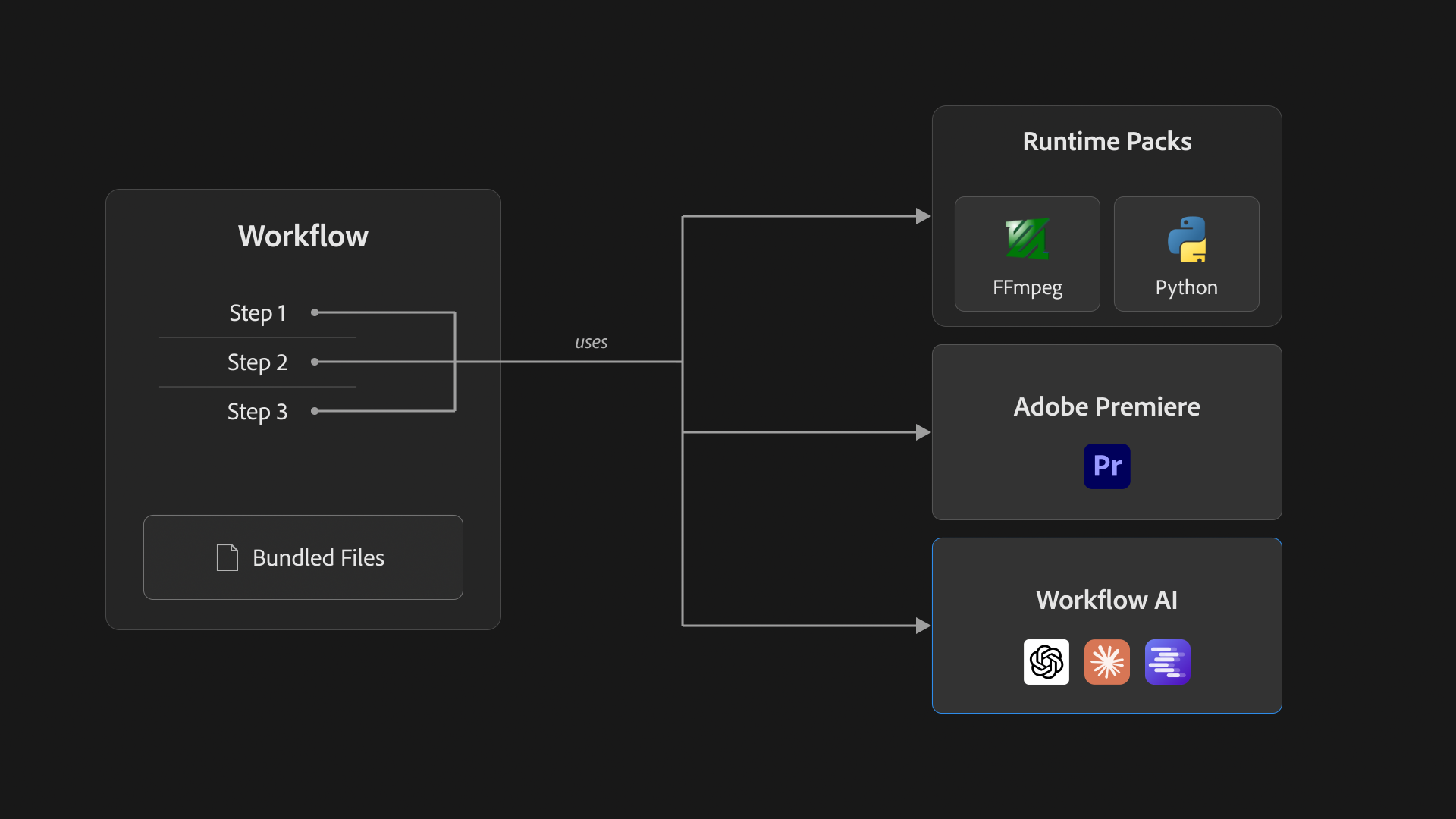
Currently available:
- FFmpeg Pack: media analysis and processing — for example exporting specific frames from clips so a workflow can analyze them visually.
- Python Pack: a managed Python runtime for workflows that need real data processing — for example transcript batching and validation in the library's transcript tools.
Why This Matters
External tools extend what an automation can do well beyond timeline edits. A concrete example from the Library: Reconstruct Edit From Reference indexes selected source media, matches every shot from a rendered reference, and places reliable original source intervals back into an editable Premiere timeline. The related framing workflow can then recover Position and Scale from the approved render. No chat assistant confined to Premiere's own feature set can do that kind of media-analysis job.
Saved workflows can combine these tools with Premiere state, transcripts, and files on disk whether or not an AI provider is configured. AI-powered workflows can combine them with Workflow AI as well, but the packs themselves remain local and deterministic.
Installing Packs
- Open the
Runtime Packstab in the Automation Agent panel. - Click Install recommended tools. Automation Agent finds the right packs for your machine and asks before installing anything.
- Alternatively, import a signed pack archive or folder manually — useful for machines without direct internet access.
Installed packs are listed with their version and can be tested or removed from the same tab.
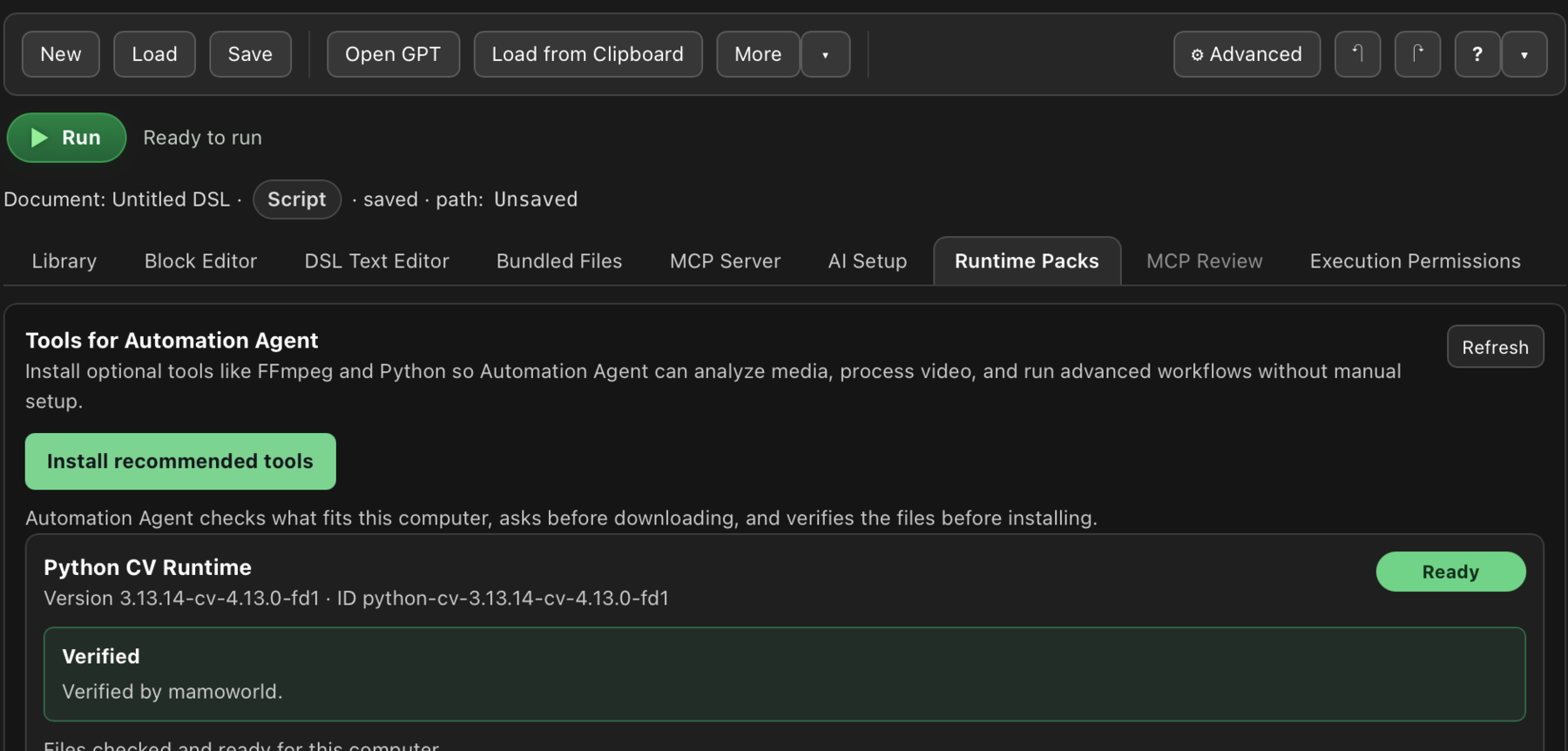
Runtime Packs are installed in Premiere's app-specific UXP data store. Premiere Pro and Premiere Pro Beta therefore keep separate installations, and different host profiles or major versions may do the same. If you switch to another Premiere host and a previously installed pack appears missing, open Runtime Packs in that host and install or import it there as well.
When A Workflow Needs A Pack
Workflows declare their requirements, and Automation Agent checks them before the run:
- If a required pack is missing, the run does not start halfway and fail — the panel reports what is missing and points you to the
Runtime Packstab. - MCP and non-interactive runs fail closed when a required tool is not configured, instead of guessing at system binaries.
You do not need to install packs speculatively. A Library tool that needs one is still visible and explains the missing requirement; Open Runtime Packs takes you to the existing Runtime Packs tab. Install the requested pack then, or install the recommended set once and forget about it.
Trust And Verification
External executables deserve scrutiny, so Runtime Packs are signed and verified:
- Official packs are verified mamoworld downloads. The
Runtime Packstab shows the verification state of every installed pack. - Imports without valid verification data are clearly labeled as not verified.
- Unsigned local installs are supported for development, and are labeled as such.
Pack executables run under the same execution model as everything else in Automation Agent: workflows still need the matching permissions, and filesystem access stays limited to what you allow.
Offline And Restricted Environments
- On a connected computer, open the Runtime Pack download page. It lists available packs with their version, supported system, download size, and SHA-256 checksum.
- Download the packs your workflows need for the operating system and processor of the computer running Premiere Pro: macOS Apple Silicon, macOS Intel, or Windows x64.
- Transfer the ZIP files through your approved process. Keep them zipped.
- In Automation Agent on the target computer, open
Runtime Packs, choose Import signed pack archive, and select each ZIP to verify and install it.
Manual downloads and panel downloads use the same signed archives from the same server. You do not need to download packs for other systems.
Runtime Packs are separate from AI setup: they are local tools, not AI providers. A restricted production machine can use signed pack archives imported from a file and run AI-free Library workflows fully offline. Workflows that need semantic judgment can also run offline when paired with an approved local Workflow AI provider such as LM Studio.
See High-Security and Restricted-Network Environments and Developing Offline Workflows Online.