Claude Code Setup
Claude Code is the more technical Claude-based path for Automation Agent.
If you want to use it inside the desktop app, install Claude Desktop first and then use the Code tab.
This page is for Claude Code, which uses the panel-managed local HTTP MCP helper.
Use this path when you want Claude Code as the Assistant that inspects Premiere project state through MCP, validates Runtime DSL, and runs permission-scoped workflows with the Automation Agent guidance layer installed.
Claude Code CLI can also be configured as Workflow AI. In that role, a saved workflow can call claude later from an askAgent step.
If the two roles are new to you, read AI Setup Roles first.
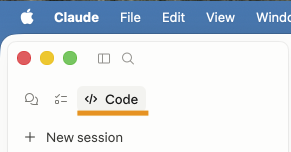
The Code tab runs Claude Code and connects directly to the panel-managed HTTP helper. The Claude tab uses a local desktop extension that connects to the same helper. See Claude Desktop Setup for that path.
This page applies whether you use Claude Code in the Code tab of the Desktop app, in the terminal, or through IDE integrations.
Which Role Does This Set Up?
| Role | Supported with Claude? | What needs to be configured |
|---|---|---|
| Assistant | yes | Claude Code MCP config plus the Automation Agent Claude Skill where your Claude surface supports Skills |
| Workflow AI | yes, through Claude Code CLI | claude executable, claude auth login, provider profile, and provider test |
Important naming detail:
- Claude Desktop Code tab is an Assistant surface.
- Claude Code CLI is the command-line provider Automation Agent uses for Workflow AI.
- Installing Claude Desktop does not automatically mean the
claudeCLI is installed and authenticated.
What You Need
For Claude Code as your Assistant, these things need to be true:
- the local Automation Agent MCP server is available
- Claude Code has an MCP server entry for Automation Agent
- the Automation Agent Claude Skill is installed as a personal local Claude Code skill
The panel covers both required local setup steps:
- MCP configuration for Claude Code
- installation and status verification of the personal Claude Code skill under
~/.claude/skills/automation-agent/
For Claude Code CLI as Workflow AI, these things need to be true:
- the
claudecommand-line tool is installed - Claude Code CLI is authenticated with
claude auth login - Automation Agent has a saved Claude Code CLI Workflow AI provider profile
- the provider test passes in AI Setup
Install And Sign In To Claude Code CLI For Workflow AI
Claude Desktop alone does not establish that a runnable claude CLI is available to Automation Agent. Use Find Claude Code CLI in AI Setup first. If no executable is found, install the CLI for your operating system:
Windows: Open PowerShell from the Start menu. Administrator rights are not required.
irm https://claude.ai/install.ps1 | iex
macOS: Open Terminal.
curl -fsSL https://claude.ai/install.sh | bash
Open a new terminal after installation and run claude --version to check that the command is available. Run claude to complete the first sign-in, or use claude auth login. Then return to AI Setup > Workflow AI, search again, select the executable, and use Test & Save. The official Claude Code setup guide covers other installation methods and login problems.
Best Setup Path
The easiest setup path is from inside the Automation Agent panel:
- open
AI Setup - click
Start Guided Setup - choose
Anthropic / Claude - follow the Claude Assistant and Claude Code CLI Workflow AI steps
The manual Assistant setup path is:
- open the
MCP Servertab - start or connect MCP
- open the
Agent Setupsection - use
Set Upin theClaude Codecard to install or update the MCP config - use
Installin theAutomation Agent Claude Skillstep - restart Claude Code only if the newly created skills directory or updated MCP config is not detected in the current session
- return to the panel and verify the status
For Workflow AI, use AI Setup > Workflow AI or Advanced Provider Setup:
- find or select the
claudeexecutable - run
claude auth loginif the CLI is not authenticated yet - use
Test & Save
Important:
- start the panel-managed local HTTP MCP helper
- configure Claude Code with that helper’s
/mcpURL
The Claude Skill is the guidance layer. It teaches Claude how to use Automation Agent correctly, including when to inspect first, how to author valid DSL, and how to avoid drifting into invented function names or argument shapes.
You do not need the .mcpb desktop extension for Claude Code. The .mcpb file is for the Claude Desktop Claude tab, where a small stdio adapter connects to the same helper.
Where The MCP Config Lives
For Claude Code, the same config model applies in the terminal and in the Code tab of the Claude Desktop app.
The panel currently installs Claude Code using user scope in:
~/.claude.json
The relevant Automation Agent entry looks like:
{
  "mcpServers": {
    "automation_agent": {
      "type": "http",
      "url": "http://127.0.0.1:53125/mcp"
    }
  }
}
Older Automation Agent versions used the alias automation_blocks. Running Update in AI Setup migrates that entry to automation_agent and removes the old alias.
Scope Notes
Claude Code supports multiple MCP scopes:
local: stored in~/.claude.jsonunder the current project pathproject: stored in.mcp.jsonin the project rootuser: stored in~/.claude.jsonand available across projects
For now, the Automation Agent panel writes the safer user-scope entry so users do not need to manage project-specific Claude config files manually.
Where The Claude Code Skill Lives
The panel installs the packaged skill as a personal Claude Code skill:
~/.claude/skills/automation-agent/
  SKILL.md
  references/
  metadata/
Claude Code makes personal skills available across local projects and can invoke them automatically from their descriptions. The panel verifies the required files after installation and offers Update when a newer packaged skill should replace the installed copy.
Claude Code normally detects edits to an existing SKILL.md during a session. Restart Claude Code when the top-level ~/.claude/skills/ directory was created after that session started, or when the MCP configuration changed.
The generated ZIP remains available for the Claude tab, which does not use Claude Code’s machine-local skill directory. Follow Claude Desktop Setup for that path.
Workflow AI Notes
Claude Code CLI Workflow AI is used by saved workflows, not by the Claude Desktop chat tab.
For example, a saved workflow might use Premiere and Automation Agent blocks to collect project data, then call Claude Code CLI only for a bounded reasoning step such as classifying transcript chunks, producing review notes, or returning structured text.
If a provider test fails, check:
- the selected
claudeexecutable path - that
claude auth loginhas completed - whether Claude Code CLI can be run from the same user account that runs Automation Agent
If Claude Code Was Already Open
Restart Claude Code after installing or updating the MCP config if it does not reconnect. Skill-file updates are normally live, except when the top-level skills directory did not exist when the session started.